













 11 months ago by Yesber
The Yprac client supports an advanced system of in-game chat commands that lets players instantly change modes, switch weapons, control bot behavior, customize aim training, and more. This guide will describe every available command and how to use them to customize your practice routines.
How to Use Chat Commands
Open the in-game chat with the default Y key. Type commands directly—no need to prefix with exclamation marks or slashes, and then press enter.
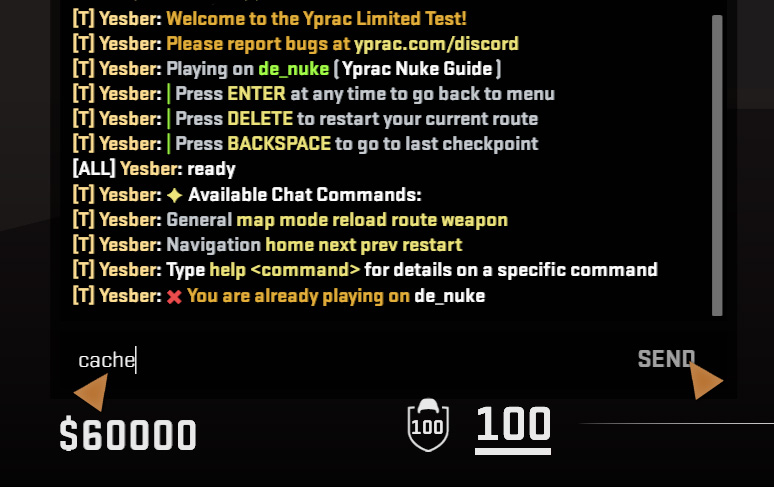
Entering "cache" into the chat will change the map to de_cache.
I'll use these boxes to describe the commands. Click on the box to learn more.
help [command] – Show available commands or help for a specific command
Displays a list of all available commands or details about a specific one.
Usage: help [command]
Examples:
help– lists all commandshelp weapon– prints how to use change weaponhelp sfx– prints how to toggle sound effects
If this guide becomes outdated you can always get an up-to-date list of commands by using the help command
Map Navigation
These commands control core functionality—switching and restarting maps. They work on any and all Yprac maps.
reload – Reload the current map
Fully reloads the map and restarts the session, useful for resetting any state.
Usage: reload
Aliases: restartmap, retry
maps [prefix] – List all available maps
Shows all installed maps or filters them by prefix.
Usage: maps
Aliases: maplist, ls
Examples:
mapsmaps demaps kz
map <name> [workshop_id] – Change to any map
Loads a new map. Add a workshop ID for custom maps if needed.
Usage: map de_cache 3437809122
Aliases: ws, workshop
Examples:
map de_miragede_mirage- or just
mirage
quit – Exit Yprac
Closes the Yprac Hub and returns you to the CS2 main menu.
Usage: quit
Aliases: exit, disconnect
Mode Selection
Each map supported Yprac map has one or more modes. Some modes have multiple routes. Some modes have presets that helps you change a lot of settings at once.
mode <name> – Change the current game mode
Switches to another practice mode, if it is available on the current map.
Usage: mode prefire
Examples:
mode sandboxprefireorpfutilityutilornades
route <number> – Change the current route
Changes to a specific route if it exists in the current mode.
Usage: route 3
Examples:
route 7- or just
7
preset [preset_name] [variety] – Activate or list training presets
Activates a specific training preset or lists available ones in a category. Useful for quickly starting aim routines with pre-tuned settings.
Usage: preset [preset_name] [variety|index]
Aliases: presets
Examples:
preset– Lists all presets by categorypreset SPEED– Activates the default preset in the SPEED subcategorypreset SPEED FRENZY– Activates the FRENZY preset in the SPEED subcategorypreset SPEED 3– Activates the third preset in the SPEED subcategory
Mode Navigation
These commands let you move between routes, restart your current scenario, or return to the main menu.
restart – Reset the current session
Resets the current route to the beginning. Useful for restarting early after a failed attempt.
Usage: restart
Aliases: reset, r
next – Go to the next route
Skips to the next route in the current mode.
Usage: next
Aliases: skip
prev – Go to the previous route
Returns to the previous route in the current mode.
Usage: prev
Aliases: previous
home – Go back to the main menu
Returns you to the maps menu section.
Usage: home
Aliases: menu, main, back
play – Start the game
Starts the selected route or training scenario.
Usage: play
Aliases: start, go
Gameplay Settings
General scenario settings supported by almost all modes.
weapon <name> – Change your weapon
Instantly equips a new weapon. Works with shorthand or full names.
Usage: weapon ak47
Aliases: wep
Examples:
weapon ak47wep ak- or just
ak
sfx [0/1] – Toggle sound effects on or off
Enables or disables in-game sound effects such as hit feedback or UI sounds during training.
Usage: sfx [0/1] or sfx [on/off]
Aliases: sounds, audio
Examples:
sfx 0sfx onsfx– toggles current state
Shooting Settings
In most modes that involve shooting, you can use these commands.
nospray [0/1] – Toggle single-shot mode
Limits weapons to fire only one bullet per click, forcing controlled tap shooting.
Usage: nospray or nospray [0/1]
Examples:
nospray 1nospray on
nospread – Toggle bullet spread
Turns off bullet spread randomness, making shots deterministic and removes movement inaccuracy. Doesn't affect recoil.
Usage: nospread or nospread [0/1]
Aliases: spread, raw
Examples:
spreadnospread onraw 1
impacts [0/1/2] – Show bullet impacts
Visualizes where bullets land. Use 1 for standard impact markers, or 2 to include wall penetration info.
Usage: impacts [0/1/2]
Aliases: impact, bulletimpact
Examples:
impacts penimpact 2
ammo [0/1] – Toggle infinite ammo
Gives you unlimited ammunition, so you never have to reload.
Usage: ammo or ammo [0/1]
Aliases: infiniteammo, infammo
Examples:
ammo 1infammo on
Movement Settings
If the current mode involves the player moving, you can control how using these commands.
movement [0/1/2] – Change player movement mode
Sets the movement style for training scenarios. Use 0 for vanilla movement, 1 for Kreedz-style jumping, or 2 for automatic bunnyhopping.
Usage: movement [0/1/2] or movement [vanilla/kreedz/bhop]
Aliases: movemode
Examples:
movement bhopmovement 1movement– shows current mode
playercrouch [0/1/2] – Control player crouch behavior
Forces the player to crouch or stand, or disables enforced stance. 0 = off, 1 = always crouch, 2 = always stand.
Usage: playercrouch [0/1/2] or playercrouch [off/crouch/stand]
Aliases: crouchmode, crouchlock
Examples:
playercrouch crouchcrouchmode 1playercrouch– toggles or shows current setting
Bot Settings
If the current mode includes bots you can use these commands to modify their behavior, equipment, damage handling, and more.
helmets [0/1] – Toggle bot helmets
Controls if the bots should use helmets or not.
Usage: helmets [0/1] or helmets [on/off]
Aliases: headarmor, helmet
Examples:
helmet 1helmets off
wh [0/1] – Toggle bot wallhack visibility
Draws boxes through walls to show bot positions. Helps track awareness training or route predictability.
Usage: wh [0/1] or wh [on/off]
Aliases: box, walls
Examples:
wh 1box on
botcrouch [0/1] – Make bots crouch or stand
Forces all bots to crouch or to stand.
Usage: botcrouch [0/1] or botcrouch [on/off]
Aliases: duck, crouch
Examples:
botcrouchcrouch 1
friendly [0/1] – Toggle friendly bots
Bots will no longer shoot back at you.
Usage: friendly [0/1] or friendly [on/off]
Aliases: friends
Examples:
friendly 1friends on
hs [0/1] – Toggle headshot-only mode
Restricts damage to allow for headshots only.
Usage: hs [0/1] or hs [on/off]
Aliases: hsonly, headshot, headshots
Examples:
hs 1headshot
botweapon <weaponname> – Set the bot weapon
Changes the weapon used by all bots.
Usage: botweapon ak47
Aliases: give, botwep
Examples:
botweapon ump45botwep m4give deag
damage [percentage] – Set bot damage multiplier
Scales the damage bots recieve from 0% to 1000%.
Usage: damage [percentage]
Aliases: botdamage, bothurt, botdmg, dmg
Examples:
damage 200dmg 50
playerdamage [percentage] – Set player damage multiplier
Adjusts how much damage the bots deals to the player.
Usage: playerdamage [percentage]
Aliases: playerhurt, playerdmg, pdmg
Examples:
playerdamage 50pdmg 0
ammokills [0/1] – Reset ammo after each kill
Automatically refills all ammo after every kill.
Usage: ammokills [0/1]
Aliases: ammoreset
Examples:
ammokills 1ammoreset on
healthkills [0/1] – Reset health after each kill
Fully restores the players health after every kill.
Usage: healthkills [0/1]
Aliases: healthreset
Examples:
healthkills 1healthreset on
Aim Trainer Specific
Extra settings that are unique to the Yprac Aim Trainer game mode.
Arena Spawn Settings
limit [amount] – Set total number of targets
Defines how many targets will spawn during the session in total. Use higher numbers for endurance training.
Usage: limit [5-1000]
Aliases: targetlimit
Examples:
limit 100limit– shows current limit
arena [width] [height] – Set arena dimensions in degrees
Defines the size of the aiming area. Use one value to scale both width and height, or specify them separately.
Usage: arena [width] or arena [width] [height]
Aliases: arenasize
Examples:
arena 45arena 45 20
distance [min] [max] – Set arena target distance range in units
Adjusts how far targets can spawn from the player. Use a range to vary target positioning depth.
Usage: distance [distance] or distance [min] [max]
Aliases: arenadist
Examples:
distance 400distance 300 500
cone [mode] [size] – Restrict target spawn angles
Limits where targets spawn relative to your crosshair using a cone. 0 = unrestricted, 1 = inside cone, 2 = outside cone.
Usage: cone [size] or cone [mode] [size]
Aliases: conemode
Examples:
cone 2 15cone 10cone– shows current config
Target Settings
size [min] [max] – Set target size range
Controls the diameter of targets. Use one number for fixed size, or two to randomize within a range.
Usage: size [min] [max] or size [size]
Aliases: targetsize
Examples:
size 10size 8 16size– shows current sizes
amount [count] – Set number of active targets
Determines how many targets are visible at once. More targets simulate multi-threat environments.
Usage: amount [1-12]
Aliases: targetamount
Examples:
amount 4amount– shows current amount
duration [ms] – Set how long targets stay visible
Defines how long a target remains visible before disappearing. Shorter durations demand faster reactions.
Usage: duration [0-1000]
Aliases: targetduration
Examples:
duration 500duration– shows current duration
delay [ms] – Set delay between targets
Sets how long to wait before spawning the next target. Lower values increase tempo and pressure.
Usage: delay [0-1000]
Aliases: targetdelay
Examples:
delay 250delay– shows current delay
Target Movement Settings
speed [value] – Set target movement speed
Controls how fast targets move. Higher values make tracking drills more demanding.
Usage: speed [1-1000]
Aliases: targetspeed, movementspeed
Examples:
speed 250speed– shows current speed
movement [id] [h] [v] [d] – Set target movement pattern
Defines how targets move: 0 = Linear, 1 = Strafe (ADAD), 2 = Evasive/Random. Optionally enable movement on horizontal, vertical, or depth axes (1 = on, 0 = off).
Usage: movement [id] or movement [id] [h] [v] [d]
Aliases: movementtype, move, moves
Examples:
movement 1movement 2 1 0 1
strafe [min] [max] – Set strafe timing
Controls how often targets change direction in strafe or evasive modes. Use one value for fixed timing or two for a range.
Usage: strafe [ms] or strafe [min] [max]
Aliases: strafes
Examples:
strafe 1000strafe 500 2000
jump [height] – Set target jump height
Defines how high targets can jump during evasive movement. 56 is normal player jump height.
Usage: jump [0-300]
Aliases: jumpheight, jumps, bunny
Examples:
jump 56jump– shows current value
hitmode [mode] [damage] – Control hit detection and damage
Sets how hits are detected and how much damage they deal. 0 = tracking hold, 1 = click-to-kill, 2 = track-then-click. Add a damage value to scale the hit impact.
Usage: hitmode [mode], hitmode [damage], or hitmode [mode] [damage]
Aliases: bulletmode, bulletdamage, bullet, hitdamage, damage, bullets
Examples:
bullet 2 100bullet 80
regen [time] [delay] – Set target regeneration time and delay
Controls how long it takes for targets to regenerate fully after being hit, and how long they wait before starting to regenerate.
Usage: regen [time] or regen [time] [delay]
Aliases: regeneration
Examples:
regen 5000regen 5000 1000
penalty [streak] [reset] – Set penalty behavior on misses
Applies a punishment after missing a set number of times. Optionally resets hit streak on penalty.
Usage: penalty [streak] or penalty [streak] [reset]
Aliases: penalties
Examples:
penalty 3penalty 3 1
Sandbox Specific
Extra settings that are unique to the Yprac Sandbox game mode.
Spawn and Teleports
noclip – Toggle flying movement
Lets you fly freely through the map without collision or gravity. Ideal for setup, exploration, and utility planning.
Usage: noclip
Aliases: fly
spawn <team> <index> – Teleport to a spawn point
Instantly moves you to a specific spawn location. Defaults to T-side if no team specified. Useful for spawn testing and peek drills.
Usage: spawn <t|ct> <index>
Examples:
spawn t 3spawn 3
bestspawn [team] – Go to closest spawn
Moves you to the spawn point nearest to your current position. Works for T or CT side.
Usage: bestspawn [t|ct]
Aliases: best, near
Examples:
bestspawn ctbestspawn
savepos [slot] – Save your current location
Records your current position and angle under a named slot. Useful for creating lineups or repeatedly testing from exact positions.
Usage: savepos [slot name]
Aliases: getpos
Examples:
savepos boost
loadpos [slot] – Teleport to a saved location
Returns you to a previously saved position and angle. Use with savepos to quickly iterate from consistent setups.
Usage: loadpos [slot name]
Aliases: setpos
Examples:
loadpos boost
Bot Manipulation
place [1-5] – Spawn a bot at your location
Places a bot at your exact position. Use a slot index to manage multiple bots for setups or peeks.
Usage: place [1-5]
Aliases: bot
Examples:
place 1place
boost [1-5] – Spawn bot and boost on top
Spawns a bot beneath you and lifts you into a boost position. Use to test boost angles and timings.
Usage: boost [1-5]
Examples:
boost 1
snap [1-5] – Snap aim to a bot
Moves your crosshair to the closest bot or a specific indexed bot. Use to check angles and microadjust aim.
Usage: snap [1-5]
Examples:
snapsnap 2
swap [1-5] – Swap places with a bot
Teleports you to the bot’s location and moves the bot to where you were. Useful for fast positioning checks or demo recreation.
Usage: swap [1-5]
Examples:
swapswap 2
snaplock [1-5] – Lock crosshair to a bot
Locks your aim onto a bot’s head and holds it there. Repeating the command unlocks your view. Used for static positioning or demo review.
Usage: snaplock [1-5]
Aliases: lock, unlock
Examples:
snaplocksnaplock 2
despawn – Remove all bots from the map
Deletes all placed bots from the sandbox session. Cleans up the environment for fresh setups.
Usage: despawn
Aliases: botreset
respawn [team] – Reset all bots to their spawn points
Returns all bots to their designated T or CT spawn locations. Use for round-start setups or timing analysis.
Usage: respawn [t|ct]
Aliases: botreset, botspawn, botrespawn, resetbots, respawnbots
Examples:
respawnrespawn ct
Utility Related
clear – Remove all thrown grenades
Deletes all currently active grenades. Use this to reset the environment for repeated lineup practice or visibility checks.
Usage: clear
Aliases: c
rethrow – Rethrow the last grenade
Automatically rethrows your last grenade with the same angle, strength, and movement. Use to verify consistency or test timing from different perspectives.
Usage: rethrow
Aliases: re, throw
nadespeed [percentage] – Control grenade flight speed
Changes how fast grenades travel through the air. Use to slow down or speed up utility throws for analysis. Inputs under 10 are treated as percentages (e.g. 5 = 500%).
Usage: nadespeed [10–500]
Aliases: quicknade
Examples:
nadespeed 50nadespeed– shows current setting
Miscellaneous
sprayspeed [percentage] – Control weapon spray speed
Adjusts how fast your weapon fires bullets. Useful for analyzing spray control or slowing recoil patterns.
Usage: sprayspeed [10–500]
Aliases: slowspray, recoilspeed, shootspeed, bulletspeed
Examples:
sprayspeed 50sprayspeed– shows current value
preview [0|1] – Toggle grenade follow camera
Enables a follow-cam that tracks your grenade in flight. Helps analyze bounces, trajectories, and lineups in detail.
Usage: preview [0|1]
Aliases: nadecam
Examples:
preview 1preview– toggles current state
zoom [level] – Adjust view magnification
Changes your camera zoom factor for training analysis or detailed positioning work. Does not affect weapon scopes.
Usage: zoom [zoom level]
Aliases: magnify, magnification
Examples:
zoom 1.5zoom– shows current zoom
Utility Specific
The utility mode has all the chat commands from the sandbox mode but also these, to control which grenade lineups are shown.
lineup [types...] – Show specific nade lineups
Filters lineup helpers to only show selected types. Use multiple types or all to enable everything.
Usage: lineup [smoke|flash|molo|he|all]*
Aliases: filter, filters, lineups
Examples:
lineup smoke flashlineuplineup all
toggle – Toggle all lineups on/off
Enables or disables display of all grenade lineups with one command.
Usage: toggle
Aliases: all, hide, show
smoke [on/off] – Toggle or filter smoke lineups
Controls visibility of smoke lineups and can combine with other types.
Usage: smoke [flash|molo|he...] or smoke [1/0]
Aliases: smokes
Examples:
smokesmoke flashsmoke 1
flash [on/off] – Toggle or filter flash lineups
Shows or hides flashbang lineups. Can be combined with other nade types.
Usage: flash [smoke|molo|he...] or flash [1/0]
Aliases: flashes, flashbang
Examples:
flashflash smokeflash 0
he [on/off] – Toggle or filter HE lineups
Shows or hides high explosive grenade lineups.
Usage: he [smoke|flash|molo...] or he [1/0]
Aliases: hes, hegrenade
Examples:
hehe smoke
molotov [on/off] – Toggle or filter molotov lineups
Controls visibility of molotov/incendiary lineups. Supports combos with other types.
Usage: molotov [flash|smoke|he...] or molotov [1/0]
Aliases: molo, molotovs, inc, incendiary, incendiaries
Examples:
molotovmolotov flash
Prefire Specific
Extra settings that are unique to the Yprac Prefire game mode.
spawns [percentage] – Set active bot spawn density
Controls what percentage of possible spawn points are active in the current prefire routine. Reducing the number creates unpredictability and forces better scanning habits.
Usage: spawns [10–100]
Aliases: botspawns
Examples:
spawns 75– activates 75% of spawnsspawns– toggles between 100% and 50%